Serial export barcodes
How to serial export barcodes as image files
1
This example shows how to export a series of barcodes as image files.
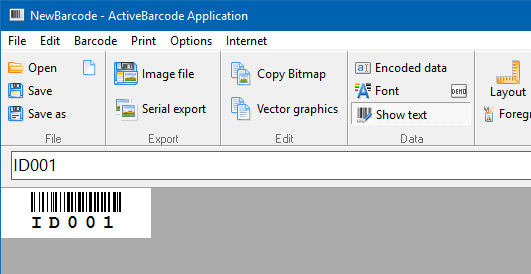
Launch the ActiveBarcode Generator and create the barcode according to your needs.
As text to be encoded you enter the start value of the serial numbers. In this example we use the value ID000. The rear digits 000 are automatically recognized and will be increased while exporting (ID000, ID001, ID002...).
2
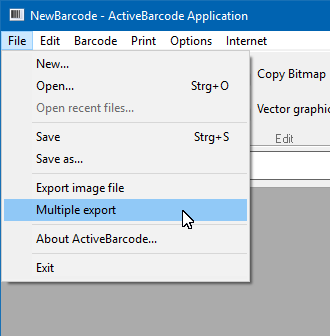
To export the image files you select "Multiple export.." from the menu "File".
3
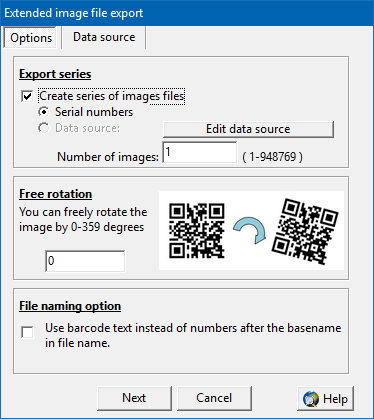
The following dialog appears:
4
Activate the option "Create series of image files". Choose between "Serial numbers" and "Data source". In this example you select the "Serial numbers". Finally you give the number of the desired image files. Click on "Next".
In the next dialog you select the filename and the destination folder. The filename is automatically complemented with a number, e.g., file.gif becomes file01.gif, file02.gif etc.
Click on OK. The image files are generated. In our example you receive the following 5 barcodes images:





5
You also can use the data import instead of the serial numbers. Select "Data source" and create or load a data source in the Tab "Data source".