How to use barcodes in Delphi
Delphi 2005, 2006, 2007, 2009, 2010, XE, XE2, XE3, XE4, XE5, XE6, XE7, XE8, 10 Seattle, 10.1 Berlin, 10.2 Tokyo, 10.3 Rio
1

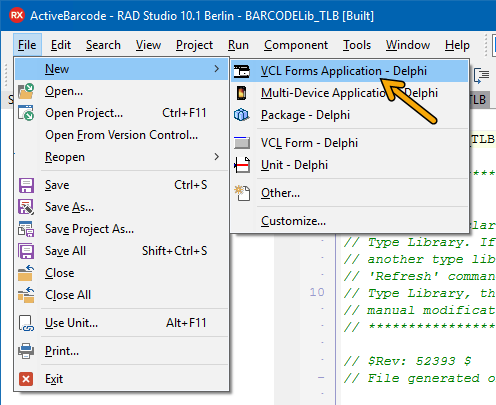
Create a new project: File - New - VCL Forms Application:
2
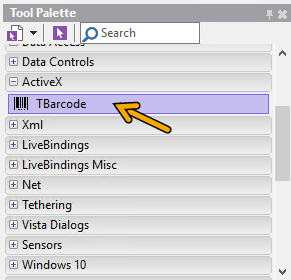
To place ActiveBarcode on a form you select the ActiveBarcode Control from the tool palette. You will find this under ActiveX as a TBarcode component:
3
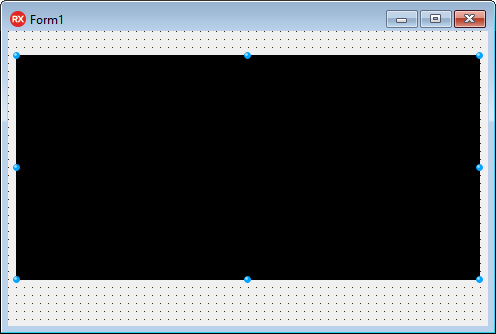
Select TBarcode and place the component on the form. Sadly, Delphi adds the barcode object with a black background color.
4
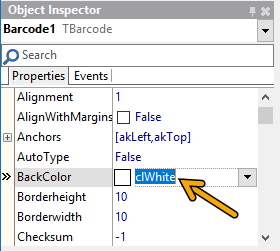
But, no problem, we simply fix this. In the object inspector you can customize the properties of the component. So set the background color to white.
5
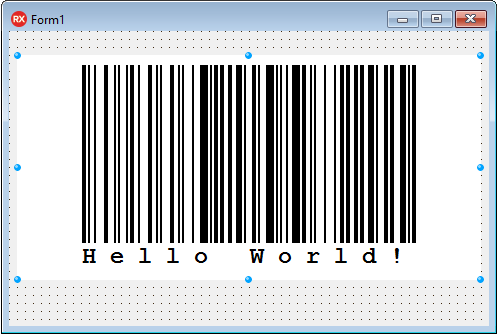
Voila, the barcode object looks fine now:
6
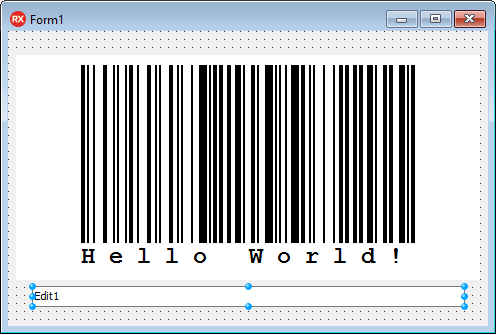
In this example we add one more control, a TEdit to the form. Now your form might look as follows:
7
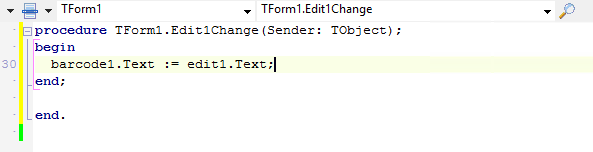
Next we link the edit field directly to the control. Open the source code for the TextChange event by double clicking the edit field. This event always is called, if the contents of the edit field are changed. Ideally for our example. We pass this update immediately to the control.
8
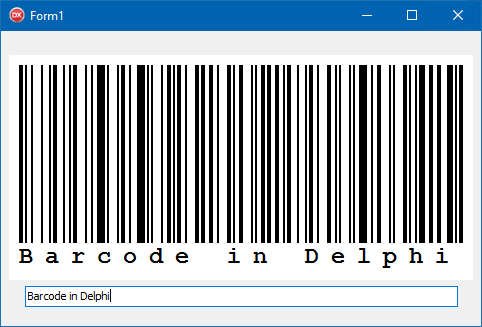
Done! Now launch the application and change the content of the edit field to change the barcode.
9
Coding examples
Setting properties is very simple.
Barcode1.Text := '123456789012';
Barcode1.BackColor := clWhite;
Barcode1.ForeColor := clBlack;
Using the Picture Property
Copy the barcode to a image object:
Image1.Picture.Bitmap.Height := Barcode1.Height;
Image1.Picture.Bitmap.Width := Barcode1.Width;
Barcode1.Picture.CleanupInstance;
Image1.Picture.Bitmap.Canvas.Draw(0,0,Barcode1.Picture.graphic);
Using the clipboard
Copy the current barcode to the clipboard as a vector graphics (WMF):
Barcode1.CopyToClipboard;Copy the current barcode to the clipboard as a bitmap (BMP):
Image1.Picture.Bitmap.Height := Barcode1.Height;
Image1.Picture.Bitmap.Width := Barcode1.Width;
Barcode1.Picture.CleanupInstance;
Image1.Picture.Bitmap.Canvas.Draw(0,0,Barcode1.Picture.graphic);
Clipboard.Assign(Image1.Picture.Bitmap);

Delphi Example source. Small desktop application for demo purposes.
Some example code created using Delphi 10.1 Berlin
Some example code created using Delphi 10.1 Berlin