Print barcode labels

How to print barcode labels

Flash Video

Here we show you how easy it is to print labels with barcodes on it. You can specify the barcodes and labels position and size in millimeters.

First launch the ActiveBarcode Application. Then create the barcode you require. If you need information of how to use the ActiveBarcode Application click here

Step 1: Setup the label sheet
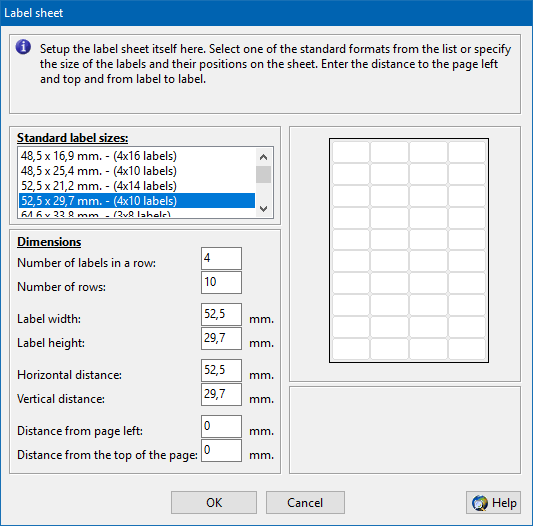
To setup the dimensions of the labels and the label sheet, first select the function "Setup Label sheet.." of the menu "Print". The following dialog will be shown:

Print barcode labels

Select the required label sheet definition from the list of predefined labels sheets. If the sheet you need is not available in this list continue with setting up the label sheet for yourself:

Enter the required dimensions of the labels in millimeters. Take a look at the image on the right of the dialog to see what values are required. Please not that some label sheets have no unused borders . In this case you enter simply 0 for them.

After entering all data correctly, press the "Ok" button.
Step 2: Print the labels
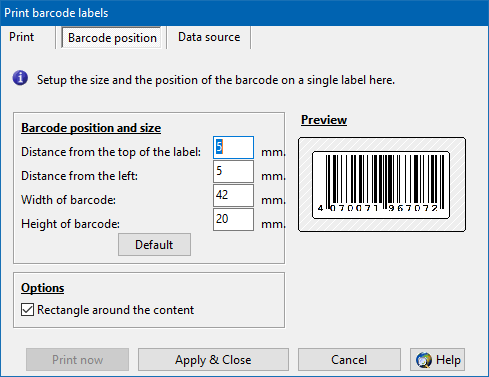
Select the function "Labels.." of the menu "Print". You can specify the size and the position of the barcode on the label. If you want to do this, click on the tab "Barcode Position". The following dialog will be shown:

Print barcode labels

Take a ruler and measure the position and the dimensions of the place where the barcode should be printed. You need 4 values:
  • Distance from the top of the label
  • Distance from the left of the label
  • Width of the barcode
  • Height of the barcode
You enter this four values into the above shown dialog.

There are label options:
Rectangle around the content: Check this option, if you want a border for the label.

After entering all data correctly, go back to the "Print" tab.

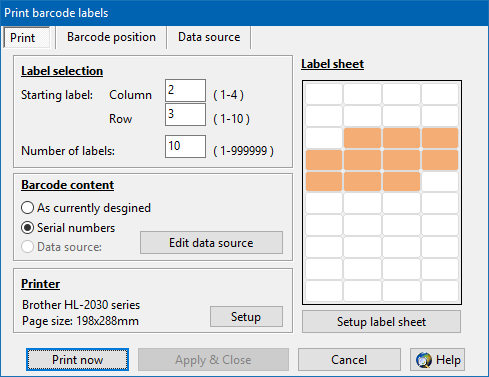
Now select what labels you want to print. The following tab will be shown:

Print barcode labels

Select the first label you want to print. Enter the row and the column of it. Then enter the number of labels you want to print. The graphics on the right will show you the labels you selected for print.

There are print options:

As currently designed:
The barcode you currently have designed inside the ActiveBarcode Application will be printed.

Serial numbers:
Using this option you can create labels with serial numbers starting the current barcodes text. This option is only available if serial numbers are possible with the current barcode text setting, e.g. is must be numeric.

Data Source:
You can use the "Data Source" to import data. See this example of using the data source for more information.

Adjust barcode for print resolution:
General you will check this option. If checked the barcode will be printed in the best resolution that is possible with the selected printer. This will normally give you the best result. If the print result does not fit your expectations you can try to uncheck this option. Then the barcode will be printed as designed and will be stretched or shrinked to the printers resolution.

Now press the "Print now" button. The barcode labels will be printed.


Related video:

Video (Flash) Description Size
Icon Print barcode labels with serial numbers using the ActiveBarcode Application. 437KB


Read more descriptions of how to add barcodes to standard applications (e.g. Office, Excel, Word, Access forms, Access reports, PowerPoint, Visio, OpenOffice.org, Lotus Notes, Publisher, Freelance, Freehand MX, Image Editors, WordPad, etc.)

rss twitter
| Home | Shop | Email | Datenschutz | Sitemap | Print preview | Version 5.58 | © Lars Schenk & Frank Horn

All trademarks and product names mentioned are the property of their respective owners.