ActiveBarcode Commandline Tool

General

You can use the ActiveBarcode command line tool to create barcode images files directly from the command line. E.g. use it in batch or script programs.

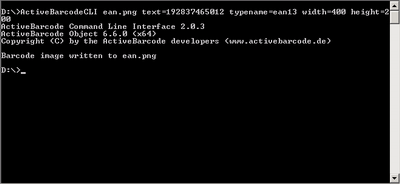
Screenshot

The commandline tool is included in the ActiveBarcode program package. When you setup ActiveBarcode to your system, the commandline tool also will be installed. You can find the tool named barcodeimage.wsf in the folder you installed ActiveBarcode to. General this is c:\programs\ActiveBarcode.

An example: The following call of the tool will create a 400x200 pixels sized PNG image file named ean.png with an EAN-13 barcode encoding "192837465012".
barcodeimage ean.png text=192837465012 typename=ean13 width=400 height=200
One more example: The following call of the tool will create a 500x100 pixels sized PNG image file named code128.bmp with an Code 128 barcode encoding "Hello World".
barcodeimage code128.bmp "text=Hello World" type=14 width=500 height=100
Powershell: If you want to use 'barcodeimage' with the Microsoft Windows PowerShell, you have to call it using 'cscript'. See this example:
cscript barcodeimage.wsf code128.bmp "text=Hello World" type=14 width=500 height=100


Command line parameters for the console

Usage:
barcodeimage filename [Parameter]

Parameter Description Example
-text= text to be encoded -text=123456789012
-type= barcode type -type=0
-width= width in pixels -width=500
-height= height in pixels -height=500
-alignment= Alignment
1=left
2=center
3=right
-alignment=2
-borderwidth= borderwidth in pixels -borderwidth=10
-borderheight= borderheight in pixels -borderheight=1
-notchheightinpercent= the notch height in % -notchheightinpercent=25
-showtext=off no textline under the code -showtext=off
-forecolor= sets the foreground color
hexadecimal RGB as RRGGBB
-foreground=000000
(example is black)
-backcolor= sets the background color
hexadecimal RGB as RRGGBB
-background=FFFFFF
(example is white)
-fontname= font for the text line -fontname=arial
-fontsize= font size -fontsize=8
-fontbold= font bold (on/off) -fontbold=on
-fontitalic= font italic (on/off) -fontitalic=on
-fontunderline= font underline (on/off) -fontunderline=on
-fontstrikeout= font strikeout (on/off) -fontstrikeout=on
-filetype= file type of image
(valid values: bmp, jpg, png, tif, tga, gif, wbm, pbm, pgm, ppm, xpm, wmf, emf)
Default: auto detect by extension of filename
-filetype=bmp
-colordepth= colordepth of the image file
(valid values: 1,8,16,24,36)
-colordepth=24
-flags= flags for the image file -flags=0x80
-angle= rotates the image file
(valid values: 0-359)
-angle=180
-transparent= background transparency
(valid values: 0, 1, not implemented yet)
-transparent=1
-dpi= resolution in DPI for jpg, png, tif & bmp files -dpi=300
-echo= off: display no messages
errors: display only errors
verbose:display all messages and open barcode in ImageView
-echo=off
-echo=errors
-echo=verbose


64bit Windows

If you want to use the barcodeimage.wsf program under Windows 64bit, you need to run the barcodeimage.wsf in 32-bit, as the control is 32-bit too. On 64bit machines wsf files are running in 64bit mode by default.

Have a look for a 32bit version of the cscript.exe or wscript.exe on your machine and then call the script using the following commands:

cscript.exe barcodeimage.wsf
or
wscript.exe barcodeimage.wsf

In general the cscript and/or wscript files are located in the %windir%\syswWOW64 folder.

Example

Screenshot For example you can use the command line tool to create barcodes dynamically in a OpenOffice document. We have created an example file for OpenOffice Calc that creates barcodes from a list of numbers right beside the numbers in a sheet.

You can download this example file directly using this link: ab_barcodelist.ods

Please have a look at the notes inside this document: You may have to edit the path of the command line tool inside the macro.

Example batch file

The ActiveBarcode software package contains a batch file to demonstrate the BarcodeImage program. This file has the name BarcodeImage-Demo.bat and has been installed by the setup into the ActiveBarcode folder.

This batch file generates a demo_barcode_image* file for every image format in every supported color depth.

Every possible combination is automatically generated and error messages are displayed on impossible parameter combinations.

Please open the batch file before you start it and read the tips contained in it.


rss twitter
| Home | Shop | Email | Datenschutz | Sitemap | Print preview | Version 5.58 | © Lars Schenk & Frank Horn

All trademarks and product names mentioned are the property of their respective owners.