Print barcodes using the application How to print a barcode exactly onto a pageHere we show you how easy it is to print a barcode exactly onto a page. You can specify the
barcodes position and size in millimeters.
For example you can use this functionality when:
- you have to print a barcode into a form.
- you have to print a barcode exactly on a specific place on a sheet of paper
First launch the ActiveBarcode Application. Now create the barcode you require. If you need
information of how to use the ActiveBarcode Application click
here
To print the barcode please select the function "One Barcode..." from the "Print" menu.
The following dialog box will be shown up:
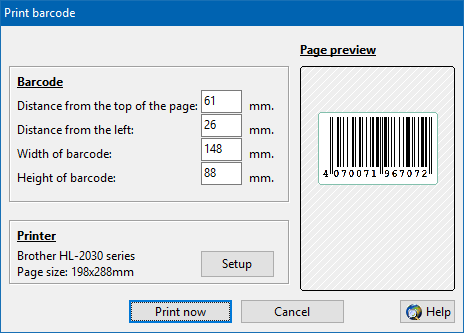
Now have a look at the page you want to print the barcode. Take a ruler and measure the position and the
dimensions of the place where the barcode should be printed.
You need 4 values:
- Distance from the top of the page
- Distance from the left of the page
- Width of the barcode
- Height of the barcode
You enter this four values into the above shown dialog.
There are print options:
Adjust barcode for print resolution:
General you will check this option. If checked the barcode will be printed in the best resolution
that is possible with the selected printer. This will normally give you the best result. If the print
result does not fit your expectations you can try to uncheck this option. Then the barcode will be printed
as designed and will be stretched or shrinked to the printers resolution.
Now press the "Print now" button. The barcode will be printed.
|
|
Read more descriptions of how to add barcodes to
standard applications (e.g.
Office,
Excel,
Word,
Access forms,
Access reports,
PowerPoint,
OpenOffice.org,
Lotus Notes,
Publisher,
Freelance,
Freehand MX,
Image Editors,
WordPad,
etc.)
|
|