Version 5.56 | Index Print view


Add Barcodes into a Excel sheet

 This description is for Excel 97, 2000, 2002 or 2003

There is also a description for Excel 2007 available.
How to add a barcode to a Excel sheet
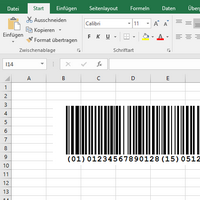
A short description of how to add a barcode to your Excel sheet and link it with a cell: First launch Excel and create a new sheet or open an already existing sheet. Now go to the menu "Insert" and select "Object..." from that item list:


A dialog box appears:


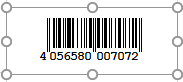
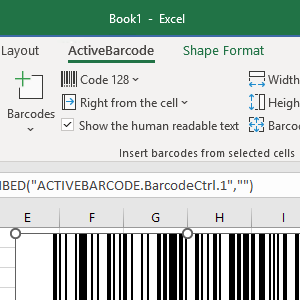
Select "ActiveBarcode" now and click "Ok". Now a barcode will be created inside your document. This will be a standard barcode of EAN-128 type. This is the default type. You can change this to any barcode type supported by ActiveBarcode: Codabar, Code 25 Industrial, Code 25 Interleaved, Code 39, Code 39 Extended, Code 93, Code 93 Extended, Code 128, Data Matrix, DUN-14, EAN-2, EAN-5, EAN-8, EAN-13, EAN-14, EAN-18, EAN-99, EAN 128, EAN-Velocity, Identcode, ISBN-10, ISBN-13, ISBN-13 Dual, Bookland, ISSN, ISMN, ITF-14, JAN, Leitcode, MSI, NVE, PDF417, PostNet, PZN, Royal Mail SCC-14, SSCC-18, UCC-128, UPC-A and UPC-E

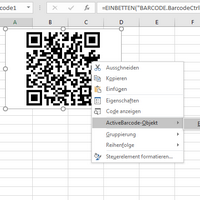
Next switch to the "design mode" of Excel (e.g. use this button: ). Now you can modify this barcode. You can change the type, text, colors etc. For this click inside the barcode with the right mouse button. A pop up menu will open:


Select "ActiveBarcode-Object" and then "Properties...". The property dialog of ActiveBarcode will open. Here you can modify the barcode as you like.

Alternatively you can use the property dialog of von Excel. For this use the following button names "Properties" in your symbol bar "Control-Toolbox":


Create a link between a cell and the barcode: Open the property dialog of Excel as described above. Now activate the barcode object by clicking onto it once. The property dialog will now display all the properties of the barcode object. Have a look for the property named "LinkedCell". This allows a link between a cell and the barcode:


Enter the cell's name for the link into this property. That's it!


Related video:
Video (Flash) Description Required licence
Embed an ActiveBarcode Object into an Excel sheet and link it with a cell Standard & Enterprise


| Home | Shop | Email | Datenschutz | Sitemap | © Lars Schenk & Frank Horn

All trademarks and product names mentioned are the property of their respective owners.

ActiveBarcode:
Barcode OCX and Software
The complete solution for all popular barcode types
www.ActiveBarcode.com