Barcode labels with imported data
How to print labels with imported data e.g. from a spread sheet
1
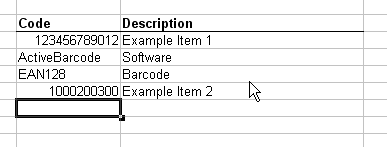
In this example we use data from a column of a spreadsheet to print labels:
2
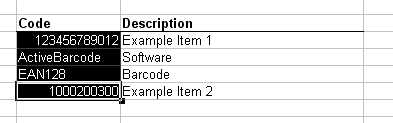
The data from the column "code" should serve as a data source for the labels. To use them, we copy these data into the windows clipboard. Mark the data you would like to use first:
3
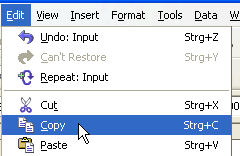
Now copy the selected data into the windows clipboard. For this use the function "Copy" out of the menu "Edit" of the spreadsheet software:
4
Next open the ActiveBarcode Generator. If you not yet adjusted the label sheet type you use, select "Setup label sheet" from menu "Print" first.
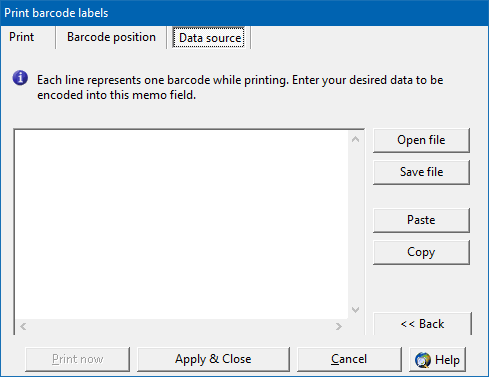
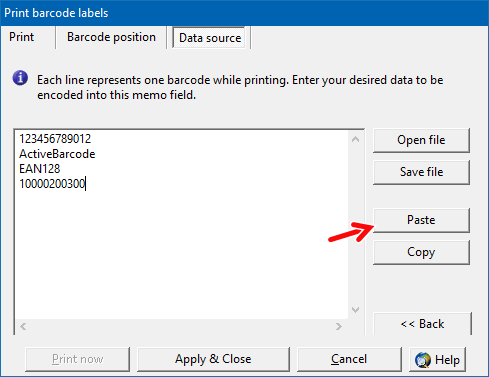
Now select the function "Labels containing barcodes" from menu "Print". Click on the tab "Data source". The following dialog box appears:
5
Clicking on the "Paste" button here. The data copied out of the spreadsheet is inserted now into the data source for the labels.
6
Now you can change optionally to the "Barcode position" tab in order to change the position and the size of the barcode on the label.
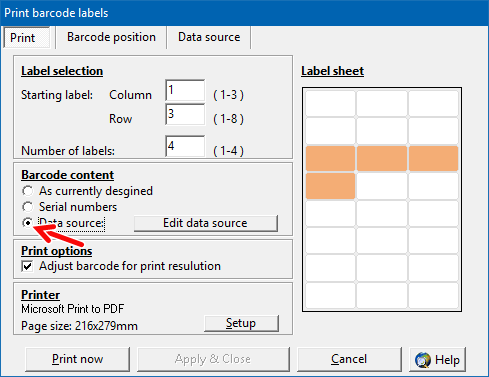
For starting the print, you change now to the tab "Print". Have a look at the "Barcode content" and select "Data source" here. Also select the starting label and the amount of labels.
7
Finally hit the "Print" button to launch the print of the labels.