►
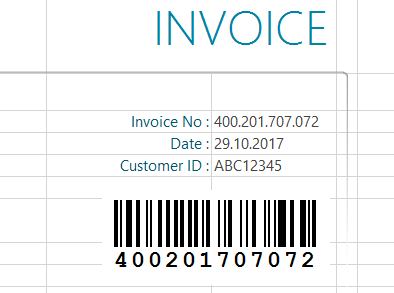
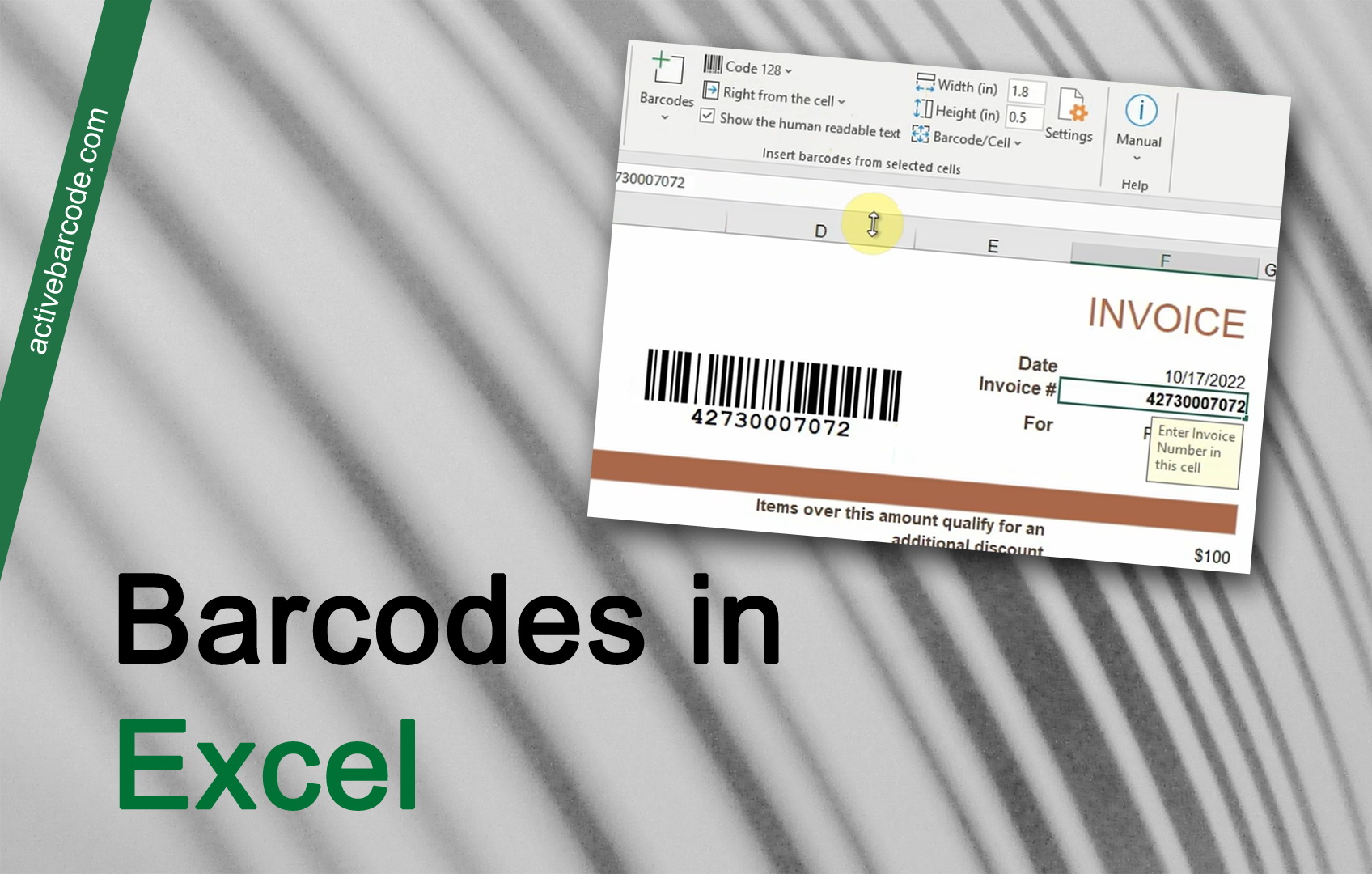
In this example, we show how to use the Excel Add-In to integrate a barcode into a form and link it to a data cell. The starting point is an invoice form in which the invoice number is to be inserted as a barcode.
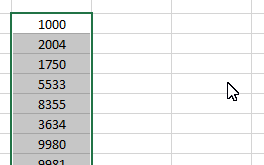
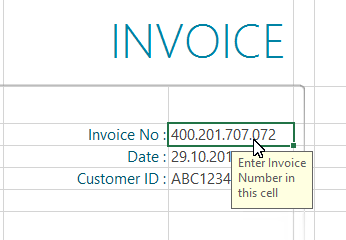
In your sheet, select the cell that you want to link. In this example, the invoice number:
1
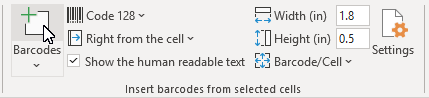
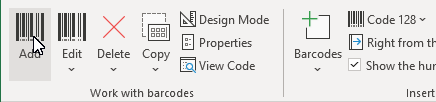
To insert a new barcode into your document, click on the
Add button of the
Work with barcodes group from the
ActiveBarcode tab:
2
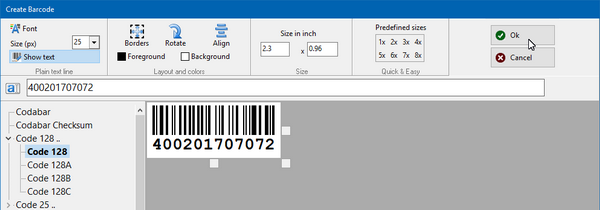
A dialog opens in which you can set the barcode according to your wishes: Select a barcode symbology from the list of barcode types. For example, you can select one of the following types:
QR Code,
GS1/EAN-128,
Data Matrix,
GTIN/EAN-13,
Code 39,
Code 93,
GS1-Data Matrix,
Code 128,
PDF417,
DUN-14,
EAN-8,
EAN-14,
EAN-18,
ISBN,
ITF-14,
NVE,
PZN8,
SCC-14,
SSCC-18 ...and others.
Now set the size and any other properties. A detailed overview of the options of the barcode dialog can be found here:
The barcode dialog of the Add-In.
Click Ok to apply the barcode to the document.
3
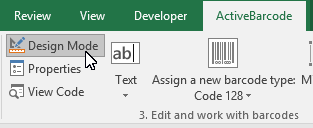
To move the barcode to its final position, activate the design mode of Excel:
4
Move the barcode to the desired position. Done!