Add barcodes to any document via the clipboard
The target application must support images via the clipboard
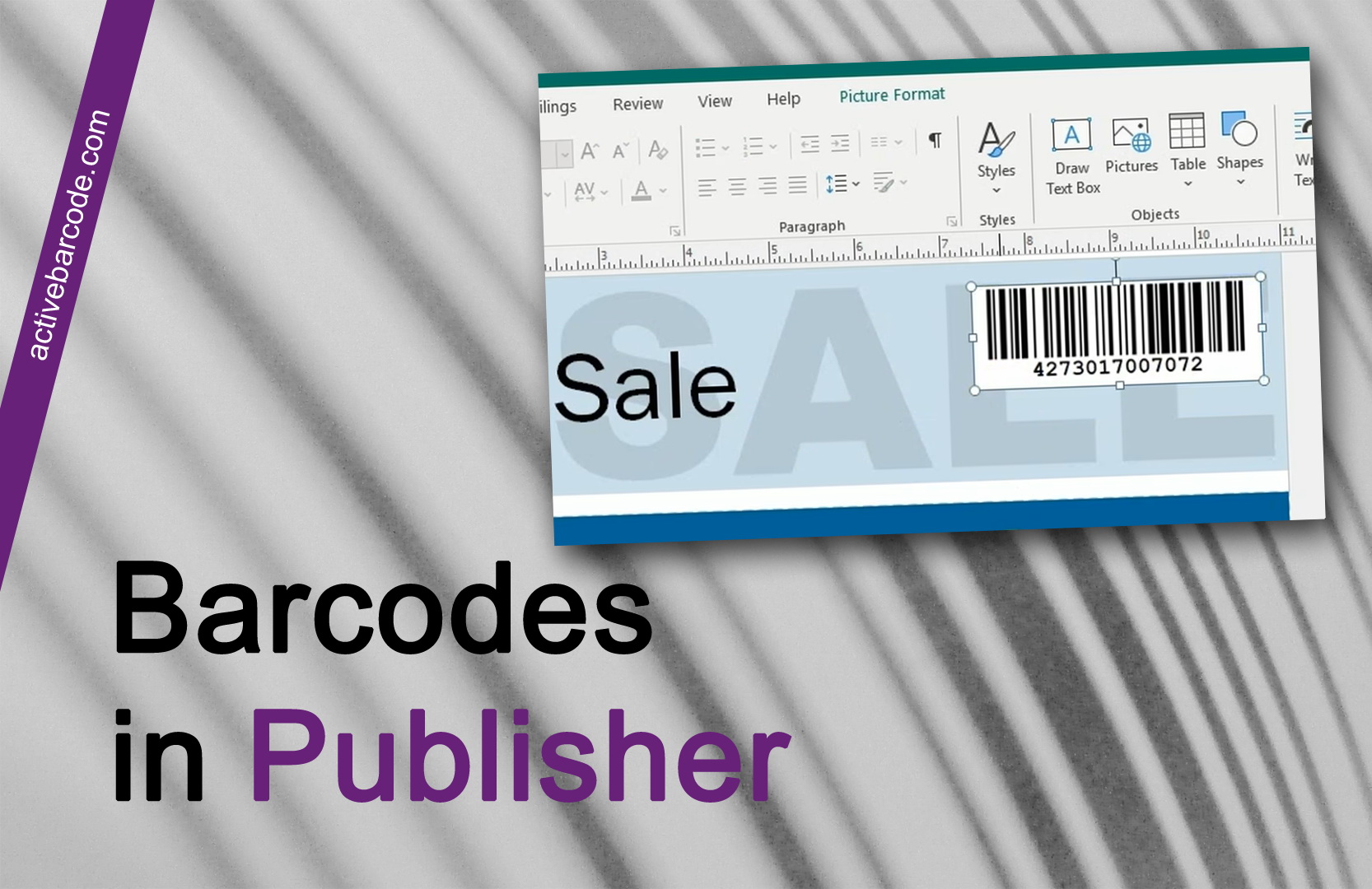
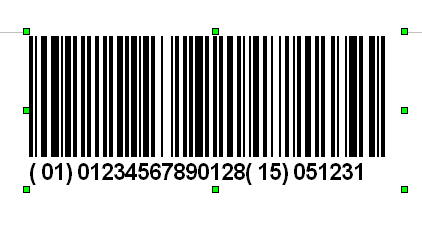
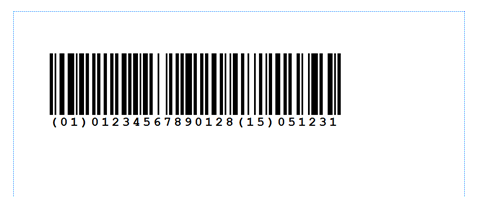
Launch the ActiveBarcode Generator and create the barcode according to your needs. If you need information on how to use the ActiveBarcode Generator click here.After creating the barcode you copy it into the Windows clipboard. To do this select Copy Bitmap or Copy Meta from the Edit menu. A description of the whole menu is located here.
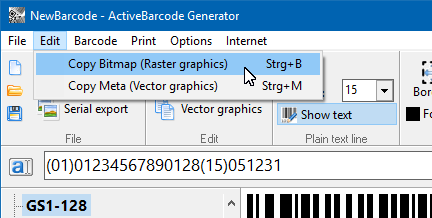 If you want to place a bitmap image to your document use the function Copy Bitmap. You do this, if you need a barcode in an exact size.
If you want to place a vector graphics to your document use the function Copy Meta. You do this, if you want to freely resize the barcode in your document.
The barcode will now be copied to the Windows clipboard and is available for nearly any application running on your system.Open your target application and create a new document or open an already existing document.
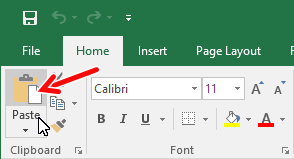
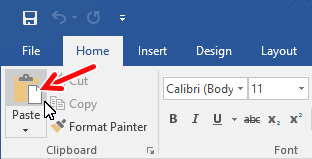
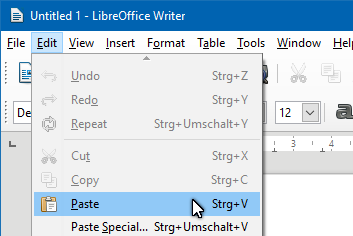
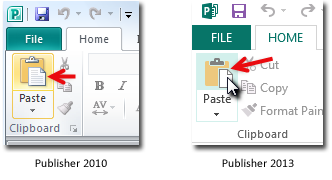
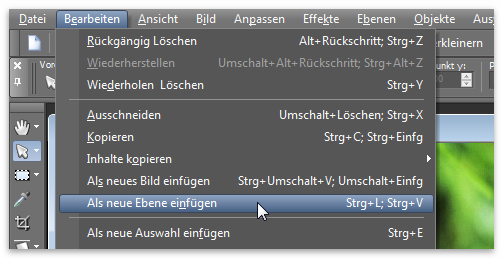
Use the Edit menu and select Paste to add the barcode image from the Windows clipboard to your document.
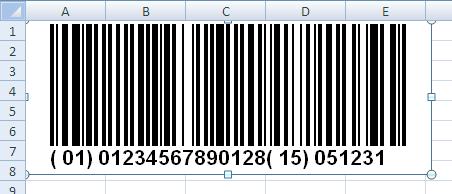
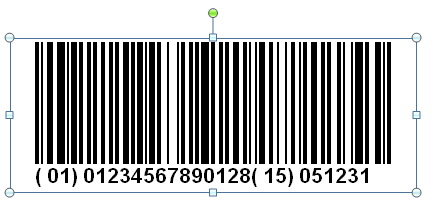
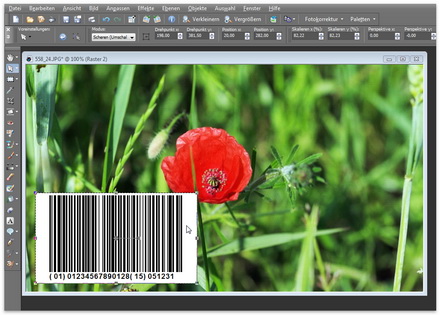
The barcode will be placed into your document as a a static image.
You can handle this barcode inside your document as any other image (e.g. resize, move, etc.). If you insert barcodes into your documents as a static image, you can share your document with others without them having to install ActiveBarcode.
If you want to automate the barcode creation process or need a dynamic barcode, please look into the barcode object or the REST API to learn how to do that.