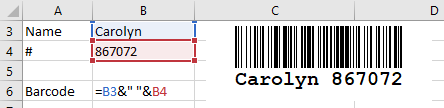
Embed and automate a barcode in an Excel sheet
Excel 365, 2024, 2021, 2019, 2016, 2013, 2010
First, launch Excel and create or open a document.
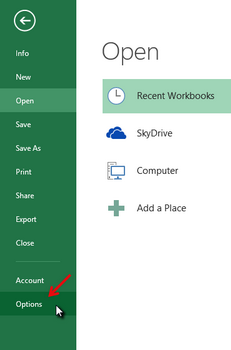
Make sure that you have configured Excel so that the Developer tab appears. To do so, go to Excel Options by clicking the File tab. This will switch you to the Backstage view. Then, click Options in the tab group on the left.
1
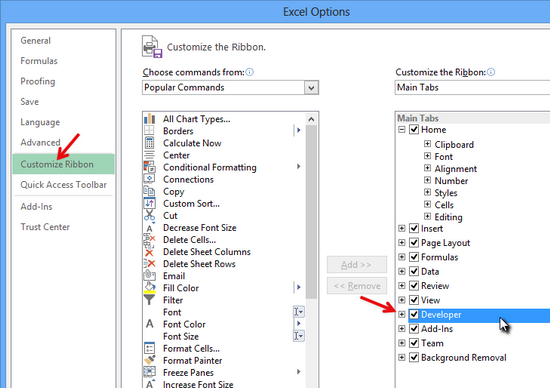
Under Customize Ribbon, enable the Developer option on the main tabs, then close the options window.
2
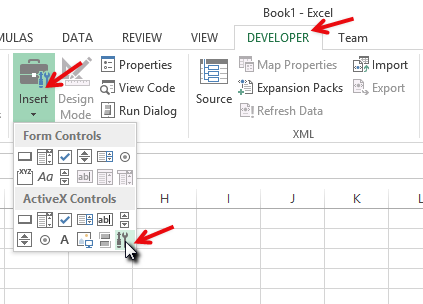
You can now embed the ActiveBarcode control element into your document. Select the Developer tab. Click the Insert button from the ActiveX Controls range, and then select More Controls.
3
A dialog box appears on the screen:
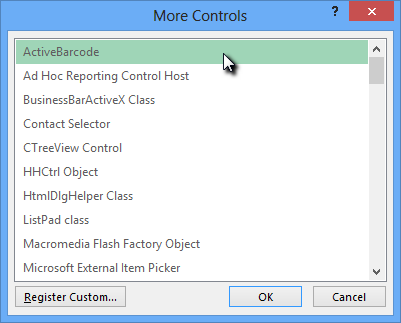
4
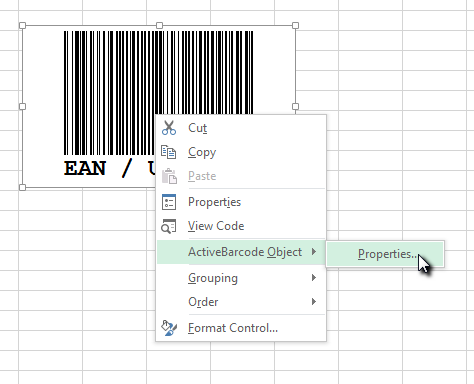
Select ActiveBarcode and click OK. A barcode will now be created inside your document. It will be a standard EAN-128 barcode. This is the default type. You can change it to any barcode type supported by ActiveBarcode: QR Code, GS1/EAN-128, Data Matrix, GTIN/EAN-13, Code 39, Code 93, GS1-Data Matrix, Code 128, PDF417, DUN-14, EAN-8, EAN-14, EAN-18, ISBN, ITF-14, NVE, PZN8, SCC-14, SSCC-18 ...You can now modify this barcode. You can change the type, text, colors, etc. To do so, right-click inside the barcode. A pop-up menu will open:
5
Select ActiveBarcode Object followed by Properties. The ActiveBarcode property dialog will open. You can modify the barcode however you like here.
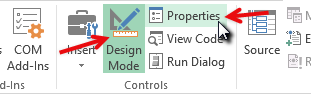
Alternatively, you can use Excel's property dialog. To do so, click the Properties button in the Controls range:
6
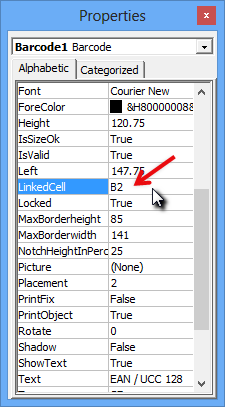
Create a link between a cell and the barcode: Open the Excel property dialog as described above. Activate the barcode object by clicking on it once. The properties of the barcode object will now be displayed in the property dialog. Look for the property named LinkedCell. This property creates a link between a cell and the barcode:
7
Enter the name of the cell for the link into this property. That's it!
If you want to create a barcode that encodes data from several cells, you must first merge these cells into an helping cell. Then connect this combined cell with the barcode object.
In the following example the contents of cells B3 and B4 are combined in cell B6. Cell B6 is linked to the barcode object.