Word
Barcode objects with VBA

 Standard or higher

Using and automating barcodes with VBA

Word 365, 2024, 2021, 2019, 2016, 2013, 2010, 2007, 2003
You can use VisualBasic for Applications (VBA) to solve many things in Word. Here we will show you how to embed, use and delete the ActiveBarcode control with VBA:

Embedding the ActiveBarcode Control into a document:
In this example a barcode control will be placed at the cursors position. Then you can modify the object using the variable ab:
Dim ab As Object
Set ab = Selection.InlineShapes.AddOLEObject(ClassType:="ACTIVEBARCODE.BarcodeCtrl.1",
  FileName:="", LinkToFile:=False, DisplayAsIcon:=False)
Set the standard properties (height, width) of the object using the variable ab:
ab.Width = 200
ab.Height = 120
You can access the properties and methods of the barcode object by using the property OLEFormat.Object:
ab.OLEFormat.Object.Type = 6
ab.OLEFormat.Object.Text = "987698769812"
You also can use a more cleaner way to access the properties by creating and using a variable, e.g. named abObject:
Dim abObject As Object
With ab.OLEFormat
  .Activate
  Set abObject = .Object
End With

abObject.Type = 6
abObject.Text = "987698769812"
Using the following call you can cast the barcode object in an InlineShape. Note, that you can not change the barcode after the conversion.
ab.ConvertToShape
If you do not need the control anymore you can delete it from the document:
 ab.Delete
Hint: If it is necessary for Windows to process upcoming events (often referred to as KeepWindowsAlive) within a macro, you can force this by using the following VBA function:
DoEvents
This can be necessary, e.g. if the Control must draw itself new.

ActiveBarcode: Info
Word Macro (VBA) to add barcodes to pages.
for Word 365, 2024, 2021, 2019, 2016, 2013, 2010
This macro shows how to add one barcode to each page containing a variable content and a page number.
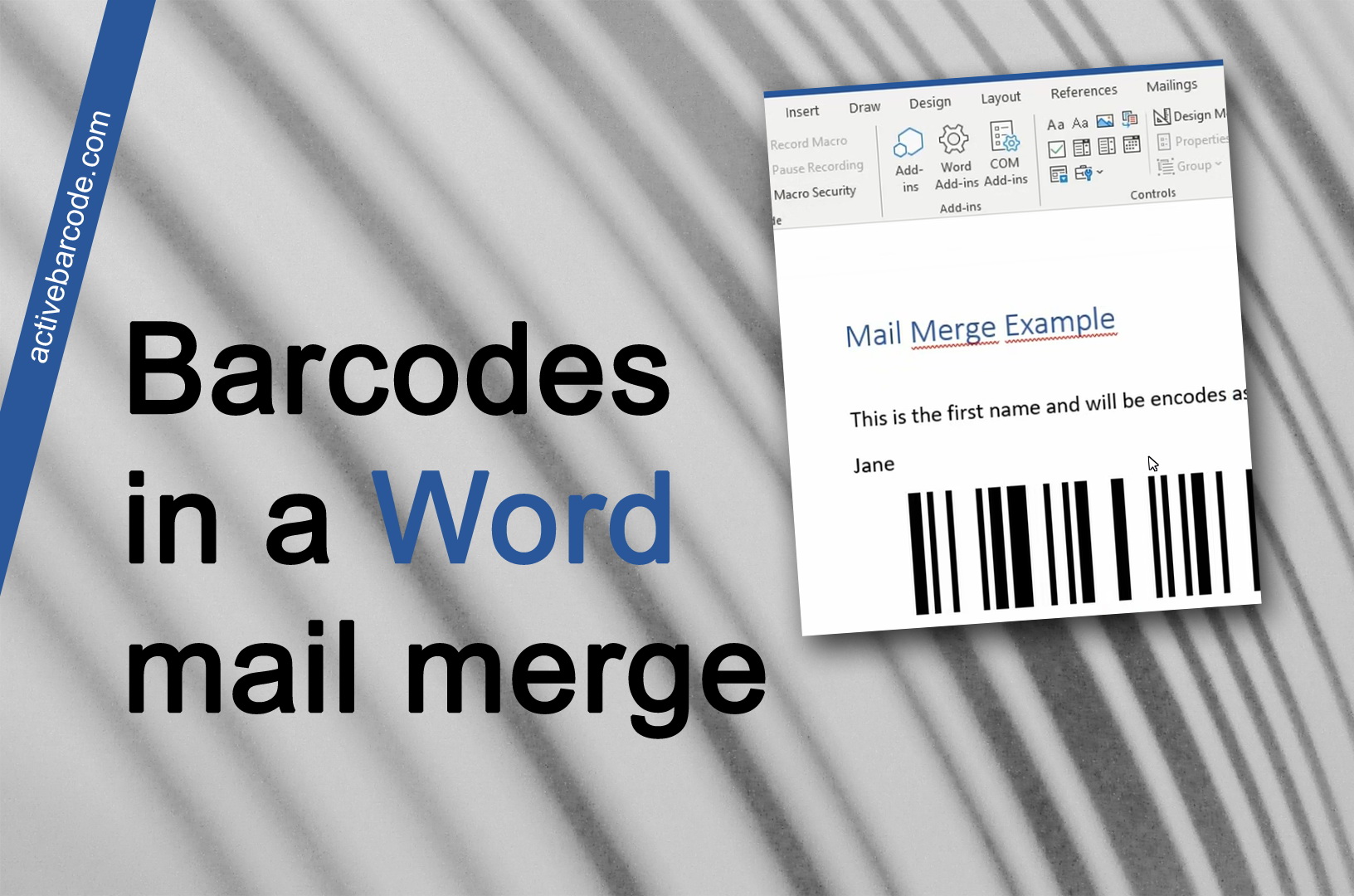
Use barcodes in Word mail merge

Word 365, 2024, 2021, 2019, 2016, 2013, 2010, 2007, 2003

1


ActiveBarcode: Use barcodes in Word mail merge.
Open an existing mail merge document or create a new one.
2


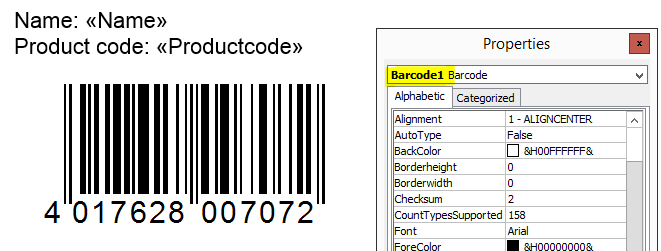
Add the Barcode Object into your mail merge document. Place it where you want it in the document and set the Properties of the object, such as barcode type and size.

This will look like the following screenshot, for example. Note the name of the barcode object - highlighted here in yellow. Usually this will be Barcode1. ActiveBarcode: Barcode, Word


3


A macro is required for the mail merge. You can add the following macro. Copy it to the Clipboard and paste it from there into the Visual Basic for Applications editor of Word:
Sub MailMerge_example_with_ActiveBarcode()
 ' Macro shows how to print barcodes in a mail merge.
 if MsgBox("Do you want to print mail merged documents?", vbYesNo, "Question") = vbYes Then
   'counter to zero
   num = 0
   'first record is number one
   ActiveDocument.MailMerge.DataSource.ActiveRecord = 1
   Do
    ' Fill ActiveBarcode text property now
    ActiveDocument.Barcode1.Text = ActiveDocument.MailMerge.DataSource.DataFields("Productcode").Value
    ' do not prompt for printing...
    Options.PrintBackground = True
    ' print page
    ActiveDocument.PrintOut
    ' recognize old record
    lastone = ActiveDocument.MailMerge.DataSource.ActiveRecord
    ' select next record
    ActiveDocument.MailMerge.DataSource.ActiveRecord = wdNextRecord
    'count
    num = num + 1
    ' check if there are new ones
   Loop While ActiveDocument.MailMerge.DataSource.ActiveRecord <> lastone
   ' notify user
   MsgBox (Str(num) + " pages printed!")
 End If
 End Sub

4


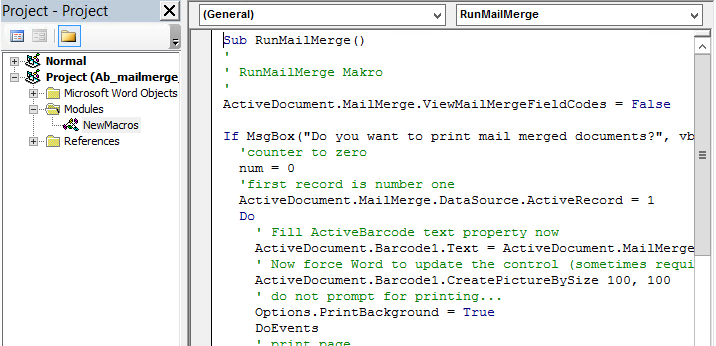
The result looks like this. In the screenshot, you can also see where the macro is inserted. ActiveBarcode: Barcode, Word


5


Now adjust the macro to your mail merger document:

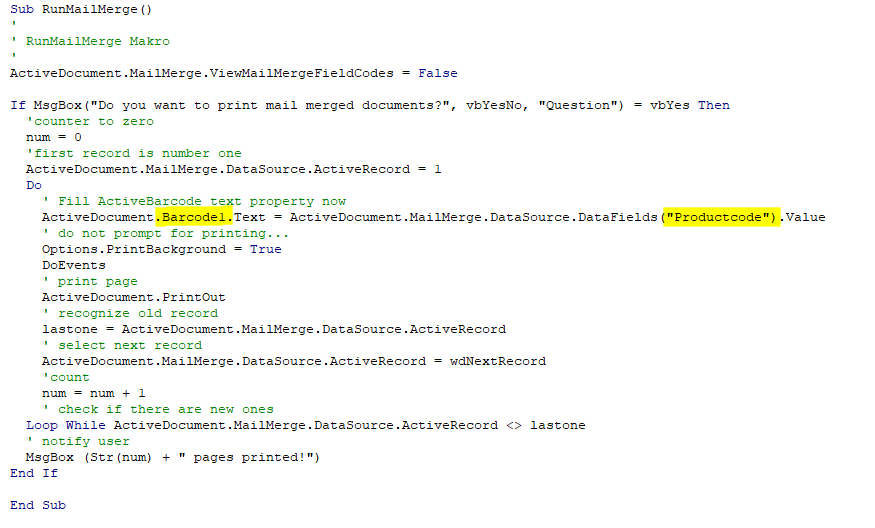
If the name of your barcode object is not Barcode1, change it in the macro - left yellow mark in the screenshot.

Now you change the field name from your data source, which is to be used for the barcode. In this example, Productcode is used - right yellow mark in the screenshot. Change the name within the quotation marks. ActiveBarcode: Barcode, Word


6


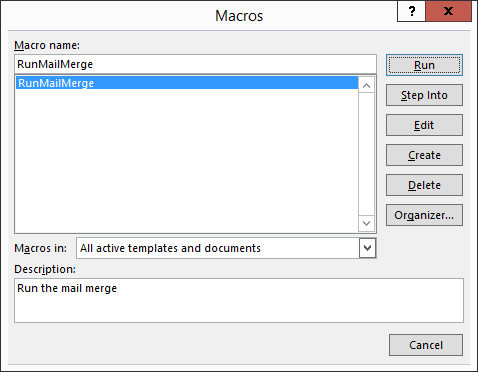
Save the document and start the macro for a test print.

Tip: Start the test printout with a small amount of data so that there are fewer misprints in case of an error. ActiveBarcode: Barcode, Word


7


Done.

Info If you have placed the macro in Normal.dot rather than in the document itself, the document must not be in design mode when you execute the macro. Doing so will result in an error. Therefore, switch off design mode before running the macro.