Access 2007
Barcodes in Access database reports
Barcodes in Access 2007 reports
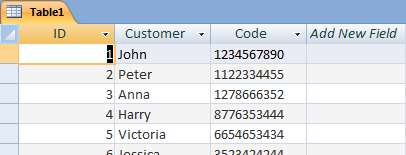
Here we show you how to add a barcode into a Access database report and bind it to a data field. First launch Access and create a new database or open an already existing database in what you want to add a barcode. A simple database could look like this:
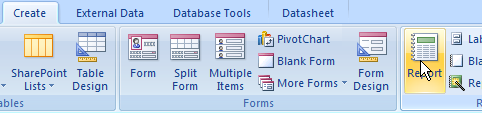
Next create a new report.
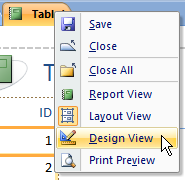
Now add the ActiveBarcode control to the report. You must be in "Design Mode" to do this.
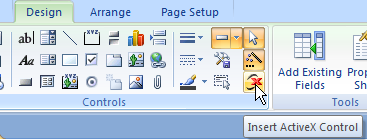
Select the "Design" tab. Click on the button "Insert ActiveX control" from the range of "Controls".
A dialog will show up:
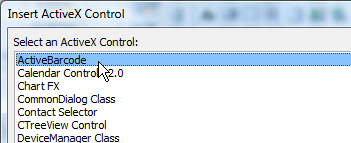
Select "ActiveBarcode" here and click OK. Now the barcode object will be placed in your report. This will be a standard barcode of EAN-128 type. This is the default type.
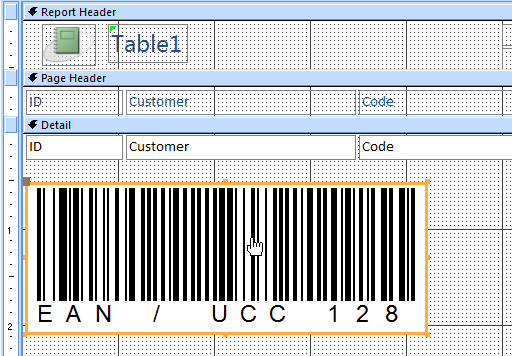
Now you can modify this barcode. You can change the type, text, colors etc. For this click inside the barcode with the right mouse button. A pop up menu will open.
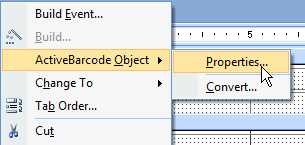
Select "ActiveBarcode-Object" and then "Properties...". The property dialog of ActiveBarcode will open. Here you can modify the barcode as you like. For example you can change the type to any barcode type supported by ActiveBarcode: QR Code, GS1/EAN-128, Data Matrix, GTIN/EAN-13, Code 39, Code 93, GS1-Data Matrix, Code 128, PDF417, DUN-14, EAN-8, EAN-14, EAN-18, ISBN, ITF-14, NVE, PZN8, SCC-14, SSCC-18, ...
Now place and resize the barcode element for your needs.
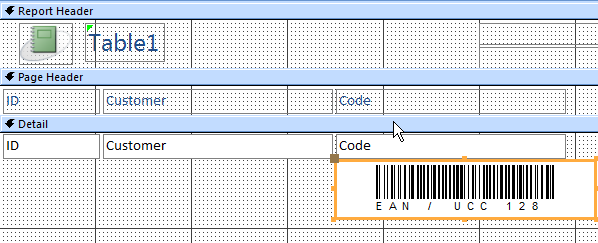
Next we bind the controls text property (the barcodes content) to the data field "Code" of the database. Select the "Design" tab. Click on the button "Property sheet" from the range of "Tools".
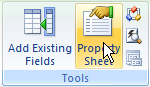
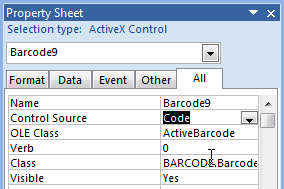
Have a look for the entry "Control Source" and change it to "Code". This is the data binding:
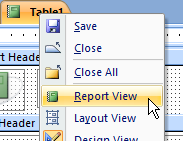
Now close the design mode and switch to report view:
Watch the result:
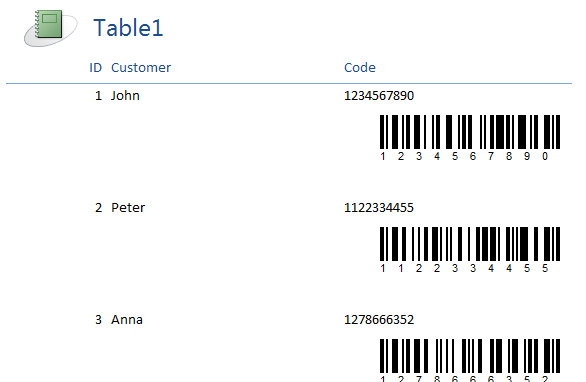
The barcode control is bound to the data base field and shows the code of the current data set as EAN-128 barcode.
One last hint: A report is designed in a lower resolution that it is using while printing. So it may be required that you create the barcode control with a much bigger font size than you would normally use. Otherwise the text line under the barcode may be very very small in your print.